Ik ben een stap verder (blijkbaar maakt het wel degelijk uit welke XP-versie je hebt, ook al claimt MS van niet) maar na een update naar SP2 start de wizzart zoals het hoort.
Echter nu krijg ik na 10 min of zo de volgende melding:
Er is een fout opgetreden tijdens het in het geheugen laden van de gegevens.
De wizzard kan de gegevens die nodig zijn voor het om de instellingen van de computer op te slaan niet samenstellen. Ga na of er voldoende schijfruimte is.
Klik op voltooien om de wizzard af te sluiten.
Dat is raar want zoals op de externe HD als op de nieuwe HD is er ruimte zat de nieuwe HD is net zoals de kappotte HD ook al weer NTFS geformatteerd evenals de externe HD.
Lekker geregeld weer van MS

Verder heb ik FASTconvert gedownload, maar daar moet je zo'n onmogelijk commando invoeren:
How to Use the Fastconv Extraction Tool
---------------------------------------
To extract files with the Fastconv Extraction tool, use the
following command at a command prompt (where
<files_to_include> are the files that you want to
extract, <files_to_exclude> are the files that you do
not want to extract, <source_store> is the source
store, <destination_store> is the destination store,
and <temp_store> is the temporary store):
" fastconv [/v] [/i:<files_to_include>] [/e[:<files_to_exclude>]]
/s:<source_store> /d:<destination_store> [/t:<temp store>] [/k] "
(without the quotation marks)
Description of the Switches
---------------------------
This section describes the switches that are used in the "How to
Use the Fastconv Extraction Tool" section in this article:
- /v Verifies only the store and does not extract files. This switch
does, however, verify if the compression is in good condition for all
of the files that are included and not excluded. Use this switch to
verify that the store is in good condition. If you specify both the /v
and /d switches, the tool displays an estimate of the space that is
needed to extract all of the files from the store, along with the
number of files that the store contains.
- /i Specifies the files to be included for decompression. The
<files_to_include> parameter is a pattern and all matching files are
included for decompression. If you do not use the /i switch, all files
are considered to be included. Note that you can use multiple /i
switches.
- /e
Specifies the files to exclude from decompression. The
<files_to_exclude> parameter is a pattern and all
matching files are excluded from decompression. If you use only the /e switch,
all files are excluded.
Note You cannot use multiple /e switches.
A good use for
this switch is if a corrupted file is in the store, and you want to exclude
that specific file from decompression. For example, if you run the tool with /v
switch and the store is in good condition, the tool finishes successfully. If a
file in the store is damaged, you receive an error message about the damaged
file, and the tool quits unexpectedly. The file mentioned in the error message
is the file that you want to exclude. For instance, if you run the Fastconv /v command, and
then you receive an error message about the 00001017.dat file, you start the tool again
with the /e switch. To do so, type the following command:
"fastconv /v /e:00001017.dat" (without the quotation marks) If the tool finishes successfully, run
the tool with the same /e:00001017.dat switch but without the /v switch to
extract all the files from the store except the 00001017.dat file.
- /s Specifies the source store location.
- /d Specifies the destination store location.
- /t Specifies the temporary storage folder. Note You must specify a
valid temporary folder.
- /k Prevents the tool from erasing the temporary files when it is
finished. The /k switch is useful when corruption on the FSTW store
touches the Transdb.dat file from inside the store. The Transdb.dat
file maintains the link between original file names and the names
inside the store. If the Transdb.dat file is corrupted, you cannot
recover it. However, when you use the /k switch, the extracted files
remain in the temporary folder. Even if you do not know the original
names of the files, you can attempt to understand what each file was.
Extracting FSTW Store From Removable Media
------------------------------------------
Since the Fastconv Extraction tool does not work on removable
media stores, you need to use the Rmv2opq tool before you use the Fastconv
Extraction tool.
Description of the Rmv2opq Tool
-------------------------------
The Rmv2opq tool converts a removable media type store into a
normal compressed store that the Fastconv Extraction tool can handle.
How to Use the Rmv2opq Tool
---------------------------
To use the Rmv2opq tool to convert the removable media type store
into a normal store, type the following line at a command prompt, where
<source_file(s)> is the source store and
<destination_directory> is the destination store:
" rmv2opq /S:<source_file(s)> /D:<destination_directory>" (without the
quotation marks)
Description of the Switches
---------------------------
The following section describes the switches that are used in the
"How to Use the Rmv2opq Tool" section in this article:
- /S Specifies the Fastconv source files(s) that are stored on
removable media.
- /D
Specifies the destination folder.
You can
specify /S multiple times to specify all of the images stored on the removable
media.
Note Make sure that you type multiple /S switches in alphanumeric
order, and that the destination folder exists. Inside the destination folder,
the tool creates a Usmt2.unc folder with a Status file and the normal store
files.
The following line shows a sample Rmv2opq.exe command that
contains multiple /S switches:
" rmv2opq.exe /S:c:\username\1usmt2img.dat /S:c:\username\2usmt2img.dat
/S:c:\username\3usmt2img.dat /D:c:\dest " (without the quotation marks) After you convert the store, you can use the normal recovery
tool.
Typical commands
C:\fastconv>fastconv /v /S "C:\fastconc\USMT2.UNC" This will verify files and database.
C:\fastconv>fastconv /e:000019D7.DAT /e:00001B58.DAT /S:"C:\Documents and Settings\bdorminy\Desktop\USMT2.UNC" /D:"C:\Documents and Settings\bdorminy\Desktop\extract" This extracts all files except for the 2 specified by the /e switch
Bij mij is de locatie van de backup F:\USMT2.UNC\IMG00001.DAT en de locatie van de nieuwe bestanden zal me een worst wezen.
Nu is het commando dus:
fastconv /S:"F:\USMT2.UNC\" /D:"C:\backup"
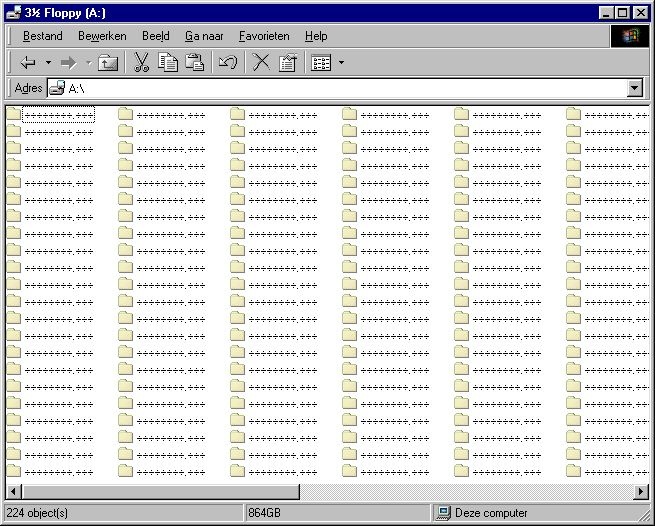
Maar nu zit ik met talloze kleine dat bestanden...

[
Voor 11% gewijzigd door
911GT2 op 29-01-2006 16:20
]
:strip_exif()/u/41358/avatar.gif?f=community)
:strip_icc():strip_exif()/u/4167/bacall8.jpg?f=community)